Start here / Introduction
Introduction
A complete white-label taxi, food delivery, and parcel platform — for business owners and developers.
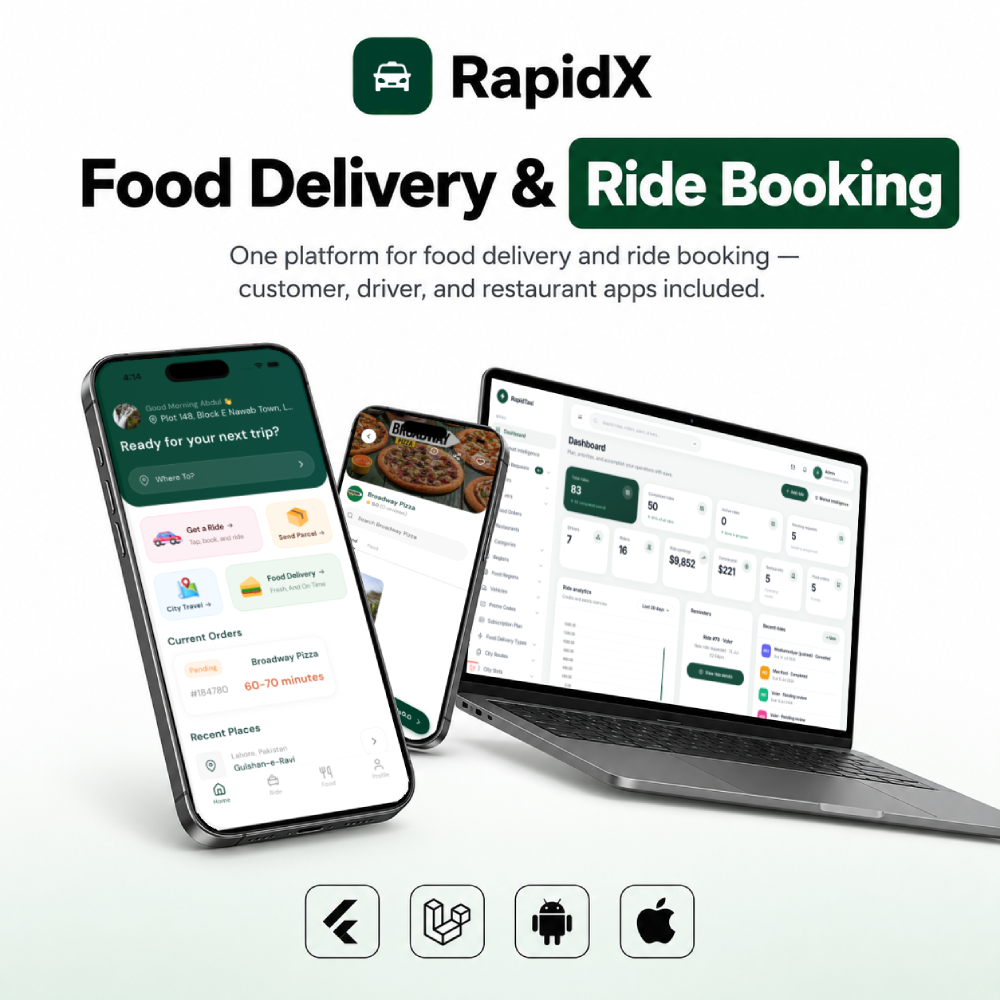
Rapidx is built to help you launch an on-demand delivery business under your own brand. Use it for taxi / ride-hailing, food delivery, and parcel / courier — from one admin panel and three mobile apps.
If you are a business owner who wants to go live quickly, or a developer who needs a ready Flutter + Laravel codebase, Rapidx is designed to get you to market faster — without starting from scratch.
Who this guide is for
You do not need to read every page. Pick the path that matches what you want to do:
Platform features
- Ride booking with live tracking and multi-stop trips
- Standard fares or driver bidding (switch from admin)
- Food delivery with restaurant partner app
- Parcel / courier deliveries
- In-app wallet, promo codes, and subscription passes
- Cash, card, and wallet payments
- Stripe, PayPal, Razorpay, MyFatoorah, and bKash
- Push notifications (Firebase)
- Multi-language, including RTL
- Staff support desk for live tickets
- Driver levels, badges, and earnings
- Optional AI Insights and AI Setup Wizard
ℹ️
Before you begin: have a domain with HTTPS, a MySQL database, Google Maps API keys, and a Firebase project ready. Payment and AI keys can be added later.
What's included
Everything you need to launch under your own brand is in the package.
| Item | Folder | What it is |
|---|
| Rider app | cc_taxi | Android & iOS app for booking rides, food, parcels, wallet, and support |
| Driver app | cc_taxi_driver | Accept rides and food jobs, earnings, badges, documents |
| Restaurant app | cc_restaruant | Incoming orders, menu, hours, and restaurant profile |
| Backend & admin | cc-taxi-backend | Laravel admin panel, API, staff desk, and public landing page |
| This documentation | documentation | Setup and how-to guides for buyers |
What you will set up yourself
These are third-party accounts. They are not included in the purchase price and may have their own fees:
- Hosting (VPS or shared hosting that supports PHP 8.2)
- Google Maps Platform (maps, places, directions)
- Firebase (login, push notifications, live chat / tracking)
- A payment gateway (Stripe, PayPal, Razorpay, and so on)
- Optional: OpenAI or Gemini if you use AI Insights / Setup Wizard
Demo accounts
Try the live demo before you install, or use these logins after a fresh install.
Live demo
After installation
The installer creates a default admin account:
| |
|---|
| Email | admin@demo.com |
| Password | 12345678 |
| Admin URL | https://your-domain.com/login |
⚠️
Change this password immediately after your first login. Do not leave the demo credentials on a live site.
How it works
A simple picture of how the apps, website, and server talk to each other.
Think of Rapidx as one server with three phones around it:
Rider appBooks rides & food
↔
Your websiteAdmin + API + landing page
↔
Driver appAccepts jobs
↔
Restaurant appPrepares orders
Firebase sits beside the server. It sends push notifications and powers live chat / location updates. MySQL stores your data (users, rides, orders, settings).
What happens on a ride
Rider requests a trip
The rider app sends pickup, drop-off, and vehicle type to your server.
Nearby drivers are notified
The server (and a background queue) alerts drivers. In bidding mode, they can send a price.
A driver is assigned
Either the driver accepts the system fare, or the rider picks a bid.
Live trip
The rider tracks the driver. Chat and location updates go through your API and Firebase.
What happens on a food order
The rider places an order → the restaurant accepts and prepares it → a driver is sent for pickup and delivery. Push notifications keep all three apps in sync.
Requirements
What you need on the server, and on the computer you use to build the apps.
Server (backend)
- PHP 8.2+ with extensions: bcmath, ctype, curl, fileinfo, json, mbstring, openssl, pdo, pdo_mysql, tokenizer, xml, zip, grpc
- Recommended: gd, exif, protobuf
- MySQL 8+ or MariaDB 10.6+
- Apache 2.4+ or Nginx — document root must be the
public/ folder
- HTTPS (required in production)
- Composer 2 if the package does not already include a
vendor folder
- Node.js 18+ only if you rebuild admin assets
ℹ️
The web installer checks PHP extensions and folder permissions for you. If something is missing, it will tell you on that page.
Your computer (mobile apps)
- Flutter SDK 3.38.10 (required — use this exact version for the rider, driver, and restaurant apps)
- Android: Android Studio, JDK 11+, min SDK 21
- iOS: Mac with Xcode 13+, CocoaPods, macOS 11+
ℹ️
Check your version with flutter --version. If you use FVM, run fvm install 3.38.10 and fvm use 3.38.10 in each app folder.
Installation
Upload the backend, create a database, then finish setup in the browser.
ℹ️
Laravel requires your domain to point at the project public folder — not the folder that contains artisan. This is the most common setup mistake.
Upload the backend
Open the cc-taxi-backend folder from your download and upload its contents to your server — artisan, app, public, and the rest. Do not upload the cc-taxi-backend folder itself.
Point the domain (or subdomain) document root at the public folder on the server.
Create a MySQL database
In cPanel, Plesk, or your host panel, create a database and a user with full access. Write down the name, username, password, and host.
Install PHP packages
From the backend root (the folder with artisan):
composer install
Skip this if your zip already contains a vendor folder. Then make these folders writable:
chmod -R 775 storage bootstrap/cache
Open the web installer
Visit https://your-domain.com/install. Confirm PHP 8.2+ and the listed extensions, then enter your app name, HTTPS URL (no trailing slash), and database details. Click Save and install and wait — do not close the tab.
Log in and finish config
You will be sent to /login. Change the default admin password, then add Maps and Firebase under Settings → System Settings. Optionally run the AI Setup Wizard to create a city.
✅
When install finishes, Rapidx writes a file called storage/installed. Visiting /install after that takes you to login. Do not delete that file on a live site.
Install from the command line instead
If the web installer is not available, copy .env.example to .env, set APP_URL and DB_*, then:
php artisan key:generate
php artisan migrate --seed
touch storage/installed
The last command hides /install, same as the wizard.
Cron job
A one-line scheduled task that keeps reminders, opening hours, and other timed jobs running.
Add this cron so it runs every minute. Replace the path with the real path to your backend (the folder that contains artisan):
* * * * * cd /path-to-your-project && php artisan schedule:run >> /dev/null 2>&1
On cPanel: Cron Jobs → add a new job → “Once per minute” → paste the command. If PHP is not in the default path, use the full PHP binary from “Select PHP Version” (for example /usr/local/bin/php).
ℹ️
This cron is not the same as the queue worker. You need both. See shared hosting or VPS.
Queue — shared hosting
If you use cPanel or similar shared hosting, run the queue with a second cron job.
Rapidx uses a background queue for ride dispatch, bid expiry, food order timeouts, and the AI Setup Wizard. If no worker is running, those jobs sit and nothing happens.
Most shared hosts do not allow a process that runs forever. Use cron to start a worker that processes waiting jobs and then exits.
- In
.env confirm QUEUE_CONNECTION=database, then run php artisan config:clear.
- Add this cron, every minute:
* * * * * cd /path-to-your-project && php artisan queue:work --stop-when-empty --sleep=3 --tries=3 --max-time=55 >> /dev/null 2>&1
Keep the scheduler cron as a separate entry. That is two crons total.
ℹ️
--stop-when-empty and --max-time=55 keep the process inside one minute so it does not overlap the next cron run. Do not set QUEUE_CONNECTION=sync on a live site.
Queue — VPS
On a VPS, run a continuous worker with Supervisor so jobs start immediately.
This is the recommended setup if you have SSH on a VPS or dedicated server.
- Install Supervisor (Debian / Ubuntu):
sudo apt update
sudo apt install supervisor -y
- Create
/etc/supervisor/conf.d/rapidx-worker.conf:
[program:rapidx-worker]
process_name=%(program_name)s_%(process_num)02d
command=php /path-to-your-project/artisan queue:work --sleep=3 --tries=3 --max-time=3600
autostart=true
autorestart=true
stopasgroup=true
killasgroup=true
user=www-data
numprocs=1
redirect_stderr=true
stdout_logfile=/path-to-your-project/storage/logs/worker.log
stopwaitsecs=3600
Change the path and user to match your server (www-data, nginx, or your deploy user).
sudo supervisorctl reread
sudo supervisorctl update
sudo supervisorctl start rapidx-worker:*
sudo supervisorctl status
After you deploy code that changes jobs:
php artisan queue:restart
sudo supervisorctl restart rapidx-worker:*
Check that it is working
php artisan queue:work --once -v processes one jobphp artisan queue:failed lists failures — retry with php artisan queue:retry all- If the MySQL
jobs table keeps growing, the worker is not running
How to update
Apply a new Rapidx version without losing your data.
Backend
- Back up the database and the whole project folder.
- Replace the PHP/Blade files with the new ones.
- Keep your
.env, storage/ uploads, and any custom logo files.
- Run:
composer install
php artisan migrate
php artisan config:clear
php artisan view:clear
- Restart the queue worker if you use Supervisor.
Mobile apps
- Merge the new Flutter files into your copies (or re-apply your branding on the new source).
- Keep your
lib/data/config.dart baseUrl and Firebase files.
- Bump the version in
pubspec.yaml and rebuild.
General settings
Name, colors, currency, and contact details — start here after install.
Log in to admin → Settings → General Settings.
- Site title — your brand name (admin + landing page)
- Primary color — hex color used by the mobile apps
- Dashboard theme — restyles the admin panel immediately
- Currency — default currency and symbol
- Business phone and email for customer-facing details
Maps keys and Firebase upload live under Settings → System Settings.
Bidding & pricing
Run Uber-style fixed fares, inDrive-style bidding, or both.
Open Settings → Ride Settings.
- Standard pricing: the server calculates the fare from distance, vehicle, region, and surge. The driver accepts that fare.
- Bidding: the rider offers a price. Nearby drivers send counter-bids. The rider accepts one.
Rider flow (bidding)
- Rider picks a vehicle and enters an offer.
- Drivers receive the request and submit bids.
- Rider accepts one bid. The trip continues as a normal ride.
Surge pricing is configured separately under surge settings when you enable it. Vehicle types can show seating capacity and a short description in the rider app.
Promo codes
Create discounts for rides, food, or both.
Admin → Promo Codes.
- Create a code with a percentage or fixed amount.
- Choose the service: taxi, food, or both.
- Optionally limit it to certain taxi regions or food zones.
- Set max uses, per-user limits, minimum order value, expiry, and first-order-only if needed.
- Save. Active codes can be applied in the rider app immediately.
Multi-currency
Different cities can show different currencies.
- Set the default currency in Settings → General Settings.
- Each taxi Region has its own currency and symbol.
- Each Food region has its own currency.
- Make sure your payment gateways support those currencies.
ℹ️
A user’s wallet currency is set on the first top-up. Wallet can only pay orders in the same currency.
Subscription plans
Monthly or yearly passes with ride discounts and free food delivery.
Admin → Passes. Set prices, discount %, free delivery, and usage limits.
Riders subscribe from Profile → Subscription. Payments can use wallet, Stripe (recurring), PayPal, Razorpay, or MyFatoorah — each must be enabled in Payment Settings.
- Cancelling keeps benefits until the plan expiry date.
- Stripe needs a webhook on
/api/stripe/webhook for subscription events.
- Reminder emails run through the scheduler cron (Cron job).
Payment gateways
Add your own Stripe, PayPal, Razorpay, or other keys from the admin panel.
Admin → Payment Settings. Use test keys first, then switch to live.
Stripe
- Copy keys from the Stripe Dashboard.
- Paste publishable key, secret key, and webhook secret.
- Set the Stripe webhook URL to
https://your-domain.com/api/stripe/webhook.
PayPal
From PayPal Developer, add Client ID and Secret, and choose Sandbox or Live. Webhook: POST /api/paypal/webhook.
Razorpay
From the Razorpay Dashboard, add Key ID and Secret. Webhook: POST /api/razorpay/webhook.
MyFatoorah and bKash are configured the same way on that settings page when you use them.
⚠️
Wallet top-ups are credited only after the gateway confirms the payment. Never ship test keys in a store build.
SMS & email
OTP and notifications need an SMS provider and an email server.
SMS
Admin → SMS Settings. Choose Twilio or 2Factor.in (India). Saving a provider activates it.
Email
Configure SMTP in your .env (or mail settings) so password resets, receipts, and subscription reminders can send. Test with a real inbox after you save.
AI Insights
City health, demand heatmaps, and launch-readiness — optional, and billed by your AI provider.
Admin → Market Intelligence.
- City health — KPIs and a short summary per city
- Demand — heatmap of order concentration
- Launch readiness — checklist score before you go live in a city
- Partners — restaurant health
- Expansion — suggested cities to open next
Add OpenAI or Gemini keys under Settings → AI Setup if you want AI-written briefings. Without keys, template summaries are used where available. The core taxi/food platform works without AI.
AI Setup Wizard
Go from an empty install to a configured city without filling every form by hand.
Admin → Setup (after you log in).
- Start a session and pick a country / city.
- Generate a proposal (AI-assisted if you added keys).
- Review regions, vehicles, and settings. Edit if needed.
- Click Apply.
- Optionally load demo data for a sales demo.
You can skip the wizard at any time and configure Regions and Vehicles yourself.
To remove demo data later: php artisan setup:purge-demo.
Driver levels & badges
Reward drivers with XP, levels, and collectible badges.
Levels (Admin → Levels): level number, name, icon, and XP required.
Badges (Admin → Badges): criteria such as rides completed, earnings, ratings, or consistency.
XP is awarded automatically when drivers finish rides, get tips, receive ratings, and complete food deliveries. Drivers see progress in the driver app.
Marketing landing page
The public homepage at your domain — for riders, drivers, and partners, not for admin.
Live example: cab.rapidcodes.io. Admin stays at /login.
It includes a hero, how-it-works, features, coverage, FAQ, and download buttons. The site title comes from General Settings.
Customize it
- Name: Settings → General Settings → Site Title
- Logo: replace
public/img/logo.png
- Phone mockup: add
public/img/landing_section_1.png (portrait works best)
- Copy & store links: edit
resources/views/welcome.blade.php
- Styles:
public/css/landing.css
ℹ️
If a Blade change does not show, run php artisan view:clear on the server.
Visual branding
White-label the product: start in admin (no code), then swap mobile icons.
1. Admin — name and colors
Settings → General Settings: site title, primary color, dashboard theme.
2. Landing page
Replace public/img/logo.png and the hero mockup. See Marketing landing page.
3. Legal pages
Admin → Pages for Terms, Privacy, and About Us shown in the apps. No code needed.
4. Mobile app name
In each Flutter project, lib/data/config.dart:
static const appName = 'Your Brand';
Also set the Android label in AndroidManifest.xml and the iOS display name in Xcode.
5. Mobile primary color
Match the hex from General Settings in each app’s theme (customer default is #003D2B in lib/theme/light_theme.dart). Use the same primary in the driver and restaurant apps.
6. Icons and splash
Replace launcher icons under android/app/src/main/res/mipmap-* and iOS AppIcon.appiconset, or use flutter_launcher_icons. Update splash images in the iOS LaunchImage set and Android drawables.
7. In-app images
Swap files under cc_taxi/assets/images/ (and the matching folders in the other apps). Keep the same filenames when you can, so you do not need code changes.
Getting started
Install Flutter, open each app folder, and get packages — then connect the backend.
1. System requirements
Install Flutter 3.38.10 before opening any app project. Other Flutter versions may fail to resolve dependencies or build.
Follow Flutter’s official install for your computer, then switch to 3.38.10:
flutter --version # must show Flutter 3.38.10
Android Studio or VS Code both work. See Flutter’s editor setup.
2. Open the projects
There are three apps. Open each folder separately:
cc_taxi — ridercc_taxi_driver — drivercc_restaruant — restaurant (folder name is spelled this way)
In each folder run:
flutter pub get
Then do these in order:
- Connect to backend (required — apps will not load data until this is done)
- Firebase
- Google Maps
Connect to backend
Every app needs your real website address. Until you set it, they cannot talk to your server.
⚠️
The package ships with https://your-domain.com as a placeholder. Replace it in all three apps. After you change it, fully restart the app — hot reload is not enough.
Open lib/data/config.dart in each project and set the same URL as backend APP_URL — HTTPS, no trailing slash:
static const baseUrl = 'https://your-domain.com';
| App | File |
|---|
| Rider | cc_taxi/lib/data/config.dart |
| Driver | cc_taxi_driver/lib/data/config.dart |
| Restaurant | cc_restaruant/lib/data/config.dart |
On the server, .env in the backend root must match:
APP_URL=https://your-domain.com
ℹ️
Local testing: you can temporarily use http://YOUR_LAN_IP:8000. Do not ship localhost or 127.0.0.1 in a store build — phones cannot reach your computer that way, and production must use HTTPS.
Change app name & ID
Use your own brand name and store listing IDs before you publish.
Default IDs as shipped:
| App | Android / iOS ID |
|---|
| Rider | com.rapidtaxi.userapp |
| Driver | com.rapidtaxi.driver |
| Restaurant | com.rapidtaxi.restaurant |
Android
- Open
android/app/build.gradle and set applicationId to something like com.yourcompany.taxiapp.
- Update the package in the three
AndroidManifest.xml files (main, debug, profile).
- Rename the Kotlin folder to match, e.g.
android/app/src/main/kotlin/com/yourcompany/taxiapp.
iOS
- Open
ios/Runner.xcworkspace in Xcode.
- Select Runner → General → Bundle Identifier.
- Confirm
PRODUCT_BUNDLE_IDENTIFIER in the Xcode project if needed.
ℹ️
If you change IDs, register the new ones in Firebase and download fresh config files. See Firebase.
Icon, splash & color
Make the three apps look like your company.
Set the display name in lib/data/config.dart (appName) and match the primary color to General Settings. Replace launcher icons and splash screens in each project’s Android mipmap / drawable folders and iOS Assets.xcassets.
A Flutter icon generator (flutter_launcher_icons) with one master PNG is usually the fastest path. Full steps are on Visual branding.
Firebase
Required for phone login, push notifications, and live chat / tracking.
⚠️
The zip includes placeholder Firebase files only. Replace them with files from your Firebase project. Do not copy one google-services.json into all three apps — each package name must match.
- Create a project at the Firebase Console.
- Add three Android apps and three iOS apps using the IDs on Change app name & ID.
- Download
google-services.json and GoogleService-Info.plist for each app.
- Replace the placeholders:
- Rider:
cc_taxi/android/app/ and cc_taxi/ios/Runner/
- Driver:
cc_taxi_driver/android/app/ and cc_taxi_driver/ios/Runner/
- Restaurant:
cc_restaruant/android/app/ and cc_restaruant/ios/Runner/
Backend service account
In Firebase → Project settings → Service accounts → Generate new private key. Upload it in Admin → System Settings, or set GOOGLE_APPLICATION_CREDENTIALS to the file path. Never commit a live private key.
Authentication
Enable Phone sign-in. For the rider app you can also enable Google, Facebook, and Sign in with Apple (iOS). Add SHA-1 / SHA-256 fingerprints for Google on Android, then re-download the config files.
Firestore (development)
Permissive rules for testing only — lock these down before launch:
rules_version = '2';
service cloud.firestore {
  match /databases/{database}/documents {
    match /{document=**} {
      allow read, write: if true;
    }
  }
}
Indexes
Create these composite indexes if the Firebase console asks for them (collection rides and users):
| Collection | Fields |
|---|
| rides | driver_id, status |
| rides | driver_id, createdAt, status |
| rides | user_id, status |
| rides | status, createdAt |
| users | name, created_at |
Google Maps
Maps, place search, and route/fare calculation need your own API keys.
In Google Cloud Console, enable:
- Maps SDK for Android
- Maps SDK for iOS
- Places API
- Directions API
- Geocoding API
Billing must be enabled on the Google Cloud project.
Android
In each app’s android/app/src/main/AndroidManifest.xml:
<meta-data
    android:name="com.google.android.geo.API_KEY"
    android:value="YOUR_ANDROID_API_KEY"/>
iOS
In ios/Runner/AppDelegate.swift set GMSServices.provideAPIKey("YOUR_IOS_API_KEY"), and add to Info.plist:
<key>GMSApiKey</key>
<string>YOUR_IOS_API_KEY</string>
Backend
Set GOOGLE_MAPS_KEY in .env and also in Admin → System Settings so the server can geocode and price trips.
Build & release
Generate an Android APK / App Bundle and prepare iOS for the App Store.
In each app folder:
flutter build apk --release
flutter build appbundle --release
flutter build ios --release
iOS still needs signing in Xcode (Team, certificates, capabilities: Push Notifications, and Sign in with Apple for the rider app). Then archive and upload with Xcode or Transporter.
Bump version in pubspec.yaml before each store submission.
Setup a taxi driver
A driver only receives taxi jobs after you attach a vehicle in admin.
- The driver registers in the driver app (or you create the account).
- In admin, open the taxi / vehicles section and click New.
- Fill in the vehicle details and select the driver from the driver field.
- Save.
ℹ️
The driver should log out and log in again. In rare cases, clear the app cache. Approve documents if you require them before the driver can go online.
Setup a restaurant
Create the restaurant in admin, then let the partner log in to the restaurant app.
- In admin, create the restaurant (name, address, food region, hours).
- Add menu categories and items (or let the partner do this in the app).
- Share the restaurant login with the partner.
- Confirm the restaurant is inside a food region that has currency and coverage set.
New orders appear in the restaurant app and as push notifications once Firebase is configured.
Legal pages
Terms, Privacy, and About Us — edit in admin, no app rebuild.
Admin → Pages. Update the content there. The rider (and other) apps load these pages from the API, so changes go live after you save.
FAQs
Short answers to the questions buyers ask most.
Do I need a developer?
You can install the backend from the browser if your host supports PHP 8.2 and you can point the domain at public/. Building store-ready Android/iOS apps usually needs Flutter (or a developer) for Firebase, Maps keys, icons, and store listing.
Can I run only taxi, or only food?
Yes. Configure the services you need in admin. You can hide or ignore the parts you are not launching yet.
How do I add another language?
Admin → Settings → Language for backend strings. For the apps, update the Flutter localization files in each project.
How is the ride price calculated?
From region rules, vehicle type, distance/time, and optional surge. Bidding mode lets the rider offer a fare instead. See Bidding & pricing.
Is AI required?
No. Insights and the Setup Wizard are optional. Rides, food, and payments work without any AI key.
Where do I get help?
WhatsApp support for installation and customization questions.
Troubleshooting
If something is blank, stuck, or not connecting, start here.
Installer already finished /install goes to login
That is expected. Rapidx created storage/installed. On a development copy only, delete that file to run the wizard again. Never do this on a live database unless you intend to reinstall.
Installer cannot save .env
The web user must write .env, storage/, and bootstrap/cache/. Typical fix: chmod -R 775 storage bootstrap/cache and chown to www-data (or your host’s user).
Database connection error
Double-check host, port, database name, username, and password. The database must already exist on most shared hosts. Names may only contain letters, numbers, and underscores.
Apps cannot reach the backend
baseUrl in all three config.dart files must match APP_URL (HTTPS, no slash at the end)- Fully restart the app after changing it
- Confirm there is exactly one active
static const baseUrl line
Google Maps is blank
- Separate Android and iOS keys, with the right APIs enabled
- Key restrictions must allow your package / bundle ID
- Billing must be on in Google Cloud
Push notifications do not arrive
- Each app has its own Firebase file and matching package name
- Android: SHA-1 added, then config file re-downloaded
- iOS: APNs key, Push capability, and a valid profile
Rides or orders sit forever
The queue is not running. Confirm QUEUE_CONNECTION=database, then set up shared hosting cron or Supervisor. If the jobs table grows, nothing is consuming jobs.
Payments fail
Use sandbox/test mode first. Check currency support and storage/logs/laravel.log. Confirm webhook URLs use your real domain.